Any questions? Give us a call 05 - 375 3220
Free delivery for orders over 1000 € / 30 days Return policy
Any questions? Give us a call 05 - 375 3220
Free delivery for orders over 1000 € / 30 days Return policy
The shutter speed of a camera is first and foremost a measure of the mechanical condition of the camera, and is the most important indicator when selling or buying a camera. Here's how to find out the shutter speed yourself
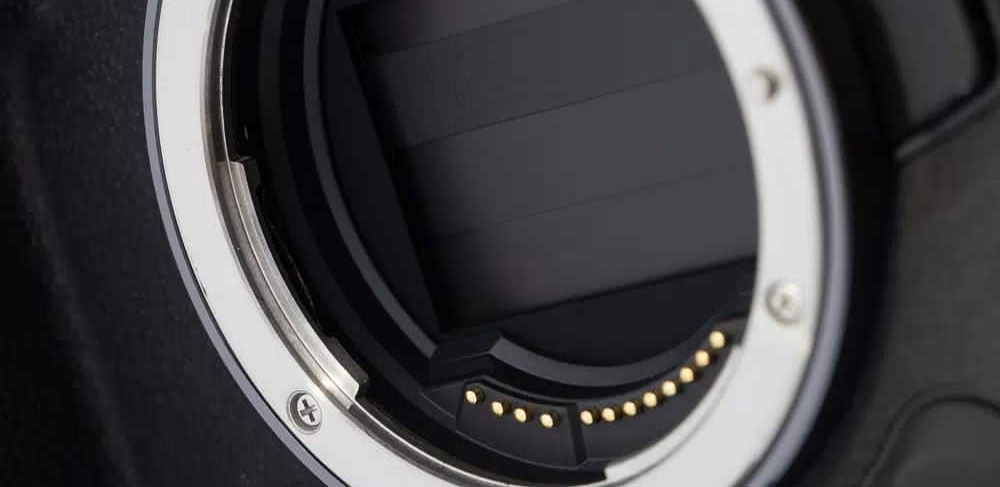
Shutter reading (shutter count) indicates how many photographs have been taken with the camera using the mechanical shutter. It is one of the most important pieces of information when buying or selling a second-hand camera, as the shutter is a part of the camera that is subject to wear and tear. In this guide, we explain how to check the shutter count on Canon, Nikon, Sony, Fujifilm, OM System and Panasonic cameras, and what constitutes a good count.
| Camera brand | Where can I find the reading? | The easiest way |
|---|---|---|
| Canon | From the camera’s memory; not usually in the image’s EXIF data | ShutterCount (Mac) or EOS Info (Windows) |
| Nikon | From the image’s EXIF data | Upload a photo to camerashuttercount.com |
| Sony and Fujifilm | From the image’s EXIF data | Upload a JPG image to apotelyt.com |
| OM System and Olympus | From the camera’s hidden menu | Key combination in the camera menu |
| Panasonic | From the camera’s hidden menu | Key combination specific to the model |
Always use an image that has been transferred directly from the camera. Images saved via Lightroom or another programme usually do not include the shutter speed.
The mechanical shutter is a part of the camera that wears out with use. Manufacturers design the shutter to withstand a certain number of shots, and by comparing the shutter count with this figure, you can see how far along the camera is in its lifespan. You can often find a model-specific estimate by searching for ”[camera model] shutter life expectancy”.
If, for example, a camera’s shutter is rated for 200,000 shots and the shutter count is 100,000, the camera is roughly halfway through the shutter’s estimated service life. However, the camera will not break down once this limit is reached. Many shutters last significantly longer than promised, and a worn shutter can be replaced during servicing.
The shutter reading doesn’t tell the whole story. Also check the condition of the sensor, the lens mount and the overall condition of the camera. We’ve put together a checklist in the article buying a second-hand camera.
Mirrorless cameras can also take photos using an electronic shutter, and some models do not have a mechanical shutter at all. An electronic shutter does not wear out mechanical parts, and is not usually counted towards the shutter count. This is why even a mirrorless camera that has been used extensively may still have a moderate shutter count.
Canon does not usually record the number of images in the image’s EXIF data, so this information is retrieved by connecting the camera to a computer.
With Nikon, it’s easy to check, as the camera records the shutter speed in the image’s EXIF data.
Sony and Fujifilm also store the shutter speed in the image’s EXIF data.
Not all the latest models are supported yet. If the service cannot detect your camera, please bring it to our shop and we’ll have a look at it for you.
OM System and Olympus cameras display the shutter speed in the camera’s hidden menu. The exact order may vary slightly depending on the model.
On Panasonic cameras, the shutter speed can be found in the hidden menu, but the key combination varies depending on the model. You can find model-specific instructions From the Apotelyti website, and a practical example from this video.
We’ll tell everyone our second-hand cameras The shutter count is included in the product name and on the product page (for example, SC 10000), so you can see straight away how many shots the camera has taken. We check every camera before it goes on sale, and its condition is stated by fitness level. All second-hand cameras come with a warranty of at least 90 days and a 30-day right of return.
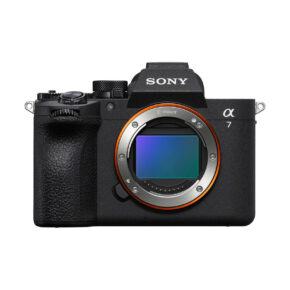
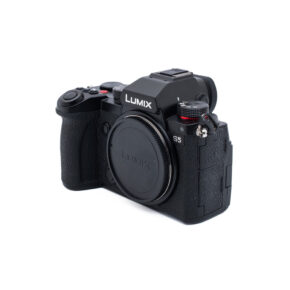
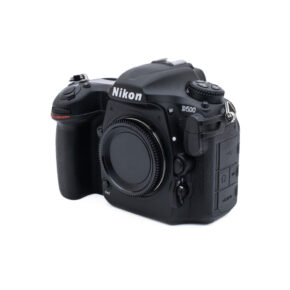
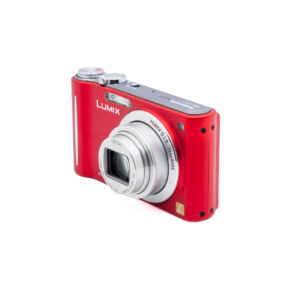
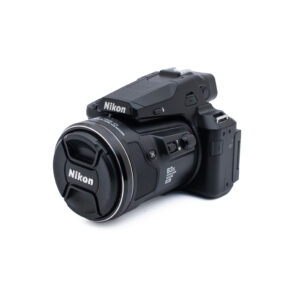
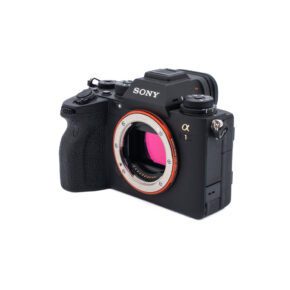
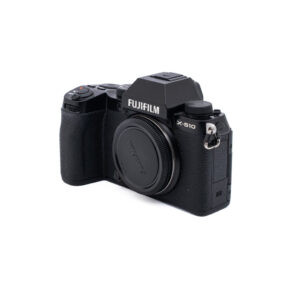
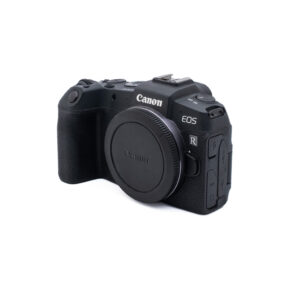
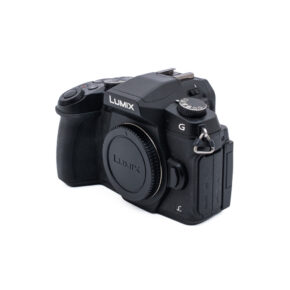
Would you like to check the shutter count on your camera? Bring your camera to our shop in Kouvola and we’ll check it for you. If you’re trading it in for a new one, we’ll give you a quote for your old camera at the same time. The trade-in price is usually around 15 % better than the price you’d get if you were just selling it. Read more: sell or swap your camera.
It depends on the model. The shutters on amateur cameras are generally rated for around 100,000–200,000 shots, whilst those on professional cameras are rated for significantly more. Anything less than half the manufacturer’s estimate is a good figure.
With Nikon, Sony and Fujifilm, you can usually see this when a photo has been transferred directly from the camera. With Canon, the reading is usually obtained by connecting the camera to a computer, whilst with OM System, Olympus and Panasonic, it can be viewed via the camera’s hidden menu.
Not usually. An electronic shutter does not wear out any mechanical parts, and the number of photos taken with it is not counted towards the mechanical shutter’s count.
The camera does not break down automatically, and many shutters last significantly longer than promised. When the shutter eventually wears out, it can be replaced at an authorised service centre.
Oh dear. Bring that camera to our shop in Kouvola, and we’ll check the shutter count and let you know how much you could get for it if you were to sell it or trade it in.




That nikon counter doesn't recognize the number of frames in the image
This is usually because the model is not in the list of supported cameras, or the META information has been lost from the image, e.g. via Lightroom. The image should be sent directly from the camera's memory card to the site. We last took shuttercounts out this morning using that site, so it does work 🙂